OmniHuman2
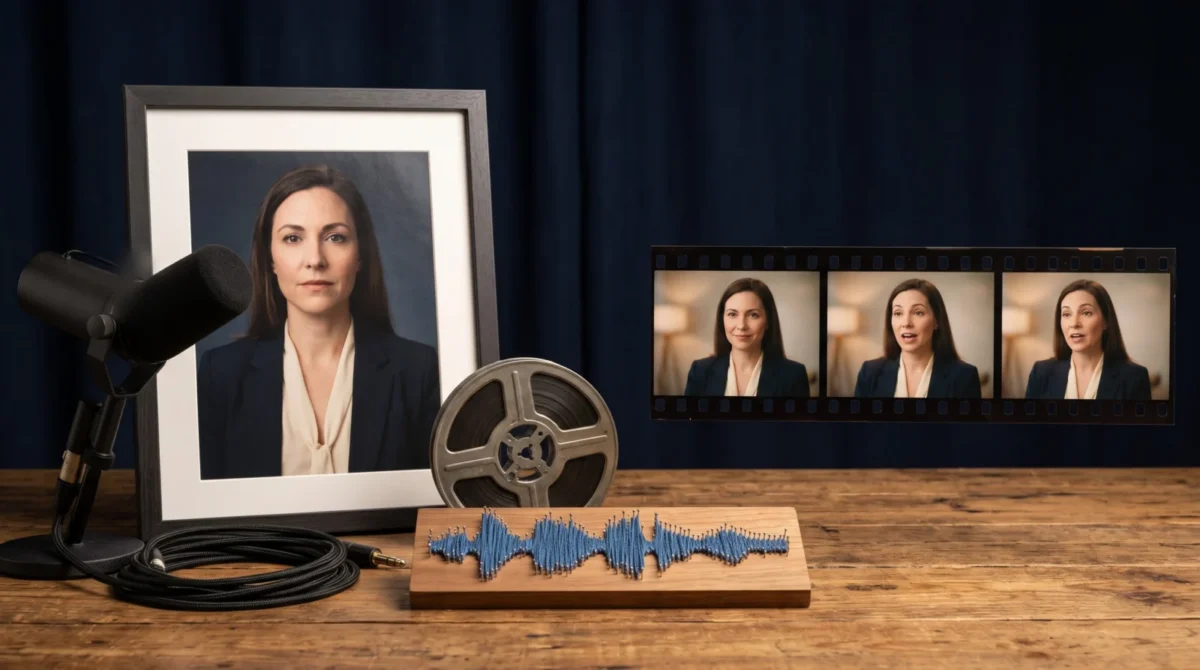
OmniHuman 2.0 vs MuseTalk is a choice between generating a performance and dubbing existing footage. BytePlus describes OmniHuman 2.0 as image-plus-audio video generation with optional text direction, while MuseTalk’s repository describes lip-sync editing in supplied imagery or video. If you’ve already filmed the shot, consider MuseTalk; if you need a new moving shot, consider OmniHuman.
The difference is the footage you bring
Picture a product presenter at a desk. You have a portrait photo and a recorded voiceover, but no footage of the presenter moving. BytePlus says OmniHuman 2.0 can take that still image with audio and an optional text prompt, then generate a video with camera and body movement. That is the main reason to consider it here. You aren’t asking it to repair an existing take.
Now change the brief: the presenter was filmed last month, the edit is approved, and one sentence in the voiceover has changed. MuseTalk’s project README calls it an audio-driven lip-sync model that modifies a face to match audio. Its inference configuration accepts an input video, image file or image directory and a separate audio file. The intended job is much closer to dubbing than directing a fresh performance.
This distinction matters. "One image plus audio" comes up in conversations about both tools. An image input in MuseTalk does not turn its mouth-region editing system into a full-body performance director. The MuseTalk README suggests generating moving footage with another tool first, then applying MuseTalk to the resulting video. Budget for that extra production step if the only asset on your desk is a still photo.
OmniHuman 2.0 vs MuseTalk at a glance
| Decision point | OmniHuman 2.0 | MuseTalk |
|---|---|---|
| Main task | Generate a performance from an image and audio, according to BytePlus | Modify the face for lip sync with audio, per the MuseTalk README |
| Input to prepare | Still image and audio; BytePlus also describes an optional text prompt | Input video, image or image directory plus audio in the inference instructions |
| Direction | BytePlus describes camera and body movement through prompts | README documents face-region editing, not shot direction |
| Delivery | BytePlus lists native 720p video output | Output characteristics depend on your input and pipeline; check the project instructions |
| Cost model | BytePlus lists film-grade at $0.07 per second and avatar at $0.12 per second | Self-hosted code and model; pay for your own compute and setup, per the license and installation notes |
These aren’t controlled quality results. No side-by-side render was made for this article, and the table shouldn’t be read as a lip-sync accuracy ranking. It tells you which production problem each project’s documentation actually addresses.
Costing one deliverable without fake equivalence
BytePlus lists a 30-to-300-second output range on OmniHuman 2.0’s film-grade tier. For a 60-second scene, the posted film-grade rate gives 60 s × $0.07 = $4.20 for one generation; at BytePlus’s avatar rate, 60 s × $0.12 = $7.20. Those are generation charges at the listed rates, not a promise that a finished edit will cost exactly that. Retakes can increase your bill. See the OmniHuman 2.0 pricing guide for the tier distinction.
MuseTalk’s repository license section says its code is MIT-licensed and its trained model may be used commercially, while dependencies have their own licenses and the repository’s test data is for noncommercial research. There is no per-second MuseTalk API rate to put next to BytePlus’s price in that setup. Your costs include compute and installation time. You also need footage preparation. Then comes review. Calling that "free video" hides most of the work.
I would use existing approved footage before paying to regenerate a whole performance just to replace a spoken line. But if the edit needs new camera movement and there is no usable footage, the cheap-looking dubbing route isn’t cheap once you have to create the base shot. That is a workflow judgment. No output test is implied.
Prepare the source before choosing a tool
For OmniHuman, start with the subject shown at the crop you want to keep: a clean chest-up portrait if the final edit needs shoulders and a readable face, or a wider image if you want the hands in frame. Avoid describing hand movements that the reference image never shows clearly. BytePlus says prompts can direct camera and body movement; it doesn’t promise every elaborate action will work from every crop. The reference image guide walks through the photo choice, and the step-by-step guide covers the basic image-and-audio workflow.
For MuseTalk, decide which footage is already locked. If you have a video with a useful face angle, preserve that edit and replace the audio track only after checking whether a lip-sync pass fits your postproduction process. The project recommends 25 fps input video because that matches its training frame rate; that is a project recommendation, not a guarantee of clean results at every angle. Its README also documents a face-region center adjustment. A close-up with a face crossing the edge of frame needs more care than a steady, front-facing shot.
Don’t confuse the licensing of a model with rights to your source media. Have permission to use the portrait and voice. Footage rights matter too. Check each dependency’s license if you deploy MuseTalk commercially. BytePlus’s product page does not spell out universal commercial-use terms or regional access rules for OmniHuman 2.0. Confirm the terms that apply to your account instead of treating a marketing use-case list as a license.
Choose by the change you actually need
A filmed spokesperson with a revised line: keep the approved shot and evaluate MuseTalk for a mouth edit. A singer who exists only as an illustration and needs a moving, directed scene: evaluate OmniHuman 2.0 as a generation job. BytePlus explicitly lists digital singers and non-human or stylized subjects among its use cases, but those descriptions aren’t a performance guarantee. For an image-and-audio starting point, you can make a video on the OmniHuman2.net overview and inspect the workflow before committing to a larger batch.
If the brief calls for both a new moving shot and an exact voiceover revision, split the work into two decisions. First create or source footage with the composition you need. Then decide if its mouth movement needs a separate dubbing pass. Keep the original audio and reference image in separate files. Save the edited script too. A late copy change should not leave you guessing which scene version was approved.