OmniHuman2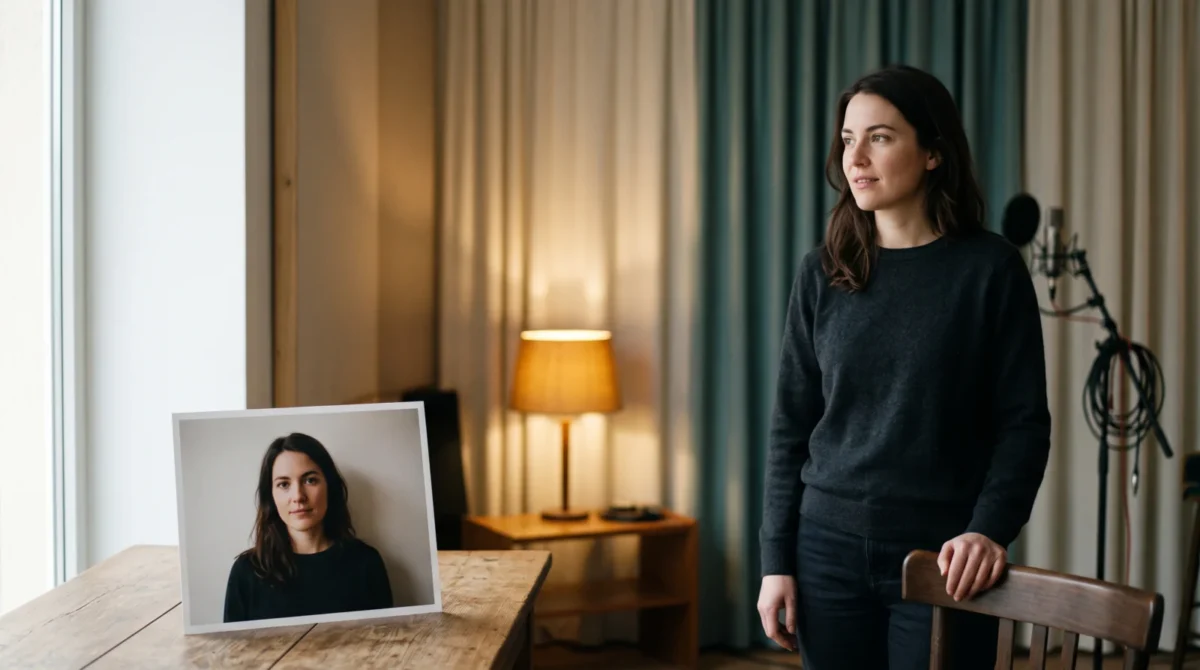
OmniHuman 2.0 scene prompts tell the model where a subject is, what nearby object matters, and how that setting reacts while the subject speaks. BytePlus says an optional text prompt can add objects and describe environmental interaction; the image and audio still supply the character and performance. Start with one plausible action, not a complete screenplay.
The reference image sets the stage
A prompt can’t rescue a reference photo that fights the setting. If the source is a tightly cropped headshot against a white wall, asking for a wide kitchen scene with someone stirring a pot means inventing most of the body and room. That might be interesting. It also gives you more things to inspect. For a kitchen scene, I’d begin with a waist-up image at a counter, with the hands visible if the action needs them, rather than gamble on a tight portrait from which the model has to invent a torso, both arms and the countertop.
BytePlus describes OmniHuman 2.0 as taking a single image plus audio, with text optional. It also lists added elements that weren’t in the reference image and interaction with the environment among its capabilities. That’s permission to try a new prop, not a promise that every tiny detail will appear exactly where you wrote it. Keep identity and wardrobe anchored to the image. One action is enough. Let the prompt handle the setting.
If you’re still choosing a source picture, use the reference image guide before spending on multiple scene variations. A visible chair, tabletop or doorway gives the subject somewhere credible to interact. Check the crop, too: a hand reaching toward an object outside the original frame demands more invention than one resting on a chair already in view.
Four scene prompts to borrow and edit
These are example prompts to try, not tested outputs or guaranteed control syntax. Pair each with a reference photo and a voice track that make sense together. The words in the audio should carry the meaning; the scene prompt should supply the physical context.
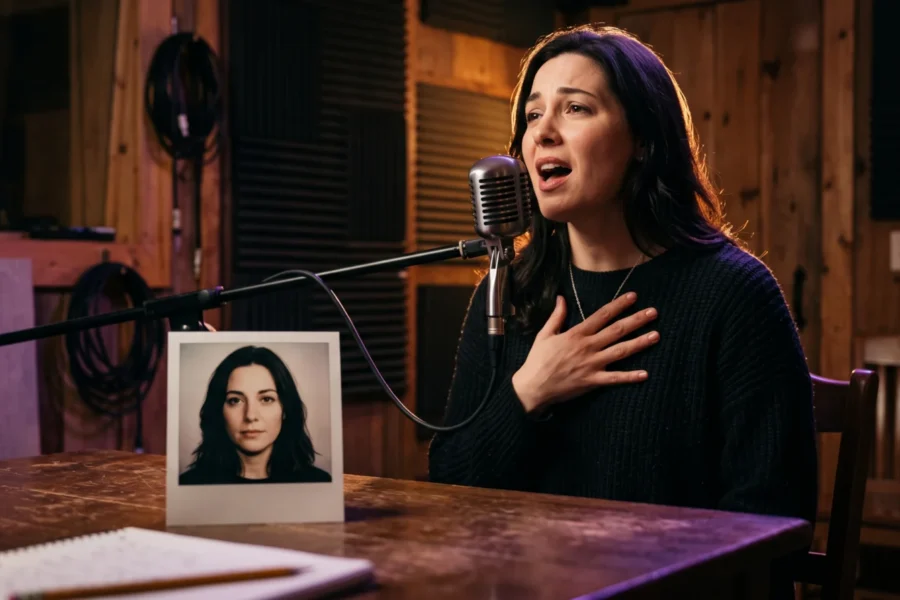
Quiet recording corner. Use a waist-up portrait near an unmarked desk, with an audio clip of a person introducing a podcast segment.
Keep the same speaker and outfit from the reference photo. They stand beside the desk in a small, warm recording room. A closed notebook rests on the desk. As the voice begins, they glance briefly at the notebook, then address the listener. Keep the room calm and the notebook closed.
The notebook gives the glance a destination. No page turning needed. If the photo doesn’t show a desk, simplify the prompt to a glance toward the side of the room and see if the setting survives before adding a prop.
Kitchen counter explanation. Use a mid-shot photo with a clear counter and a spoken explanation of a recipe. Avoid asking for a branded package or a readable label.
Keep the person from the reference image behind the counter. A plain ceramic bowl sits near their right hand. While they explain the next ingredient, they briefly rest a hand near the bowl and continue speaking toward the listener. Warm morning light comes from the window to their left. No writing on the bowl.
Small interaction. Not food choreography. A single instruction to stir already makes the hand and bowl a moving pair. Add a pour on top and you have another interaction to inspect. Start with the bowl sitting still. Only add a more complex action if you need it for the story.
Gallery walk-through. Use a standing reference with enough space around the subject, and a voiceover describing an artwork. Keep the artwork abstract so the prompt doesn’t depend on legible text.
Place the speaker in a quiet gallery with one abstract canvas on the wall beside them. They turn slightly toward the canvas during the description, then face the listener again. Keep the canvas free of words or recognizable logos. The scene stays in the same room throughout the clip.
Here the object earns its place because the audio describes it. If the narration never mentions the art, the turn can feel unmotivated. For more control over the turn itself, the separate camera and gesture prompt guide focuses on movement rather than setting.
Window-side weather report. Use a chest-up portrait next to a window and audio about a rainy morning.
Keep the speaker’s appearance consistent with the reference. They stand by a window in a plain room, with soft rain visible outside. As they mention the weather, they look toward the window for a moment and return to the listener. The glass stays clear enough to see the outdoor light.
This asks the setting to respond to the spoken line without sending the person across the room. Rain stays in the background. The speaker is the point. If the generated weather competes with the face, remove the rain and retain only the cool window light.
Match the action to the voice track
BytePlus says the model draws on the audio’s rhythm and meaning to guide animation. Listen first. Skip the long block of stage directions. A calm explanation about a recipe can support a glance at a bowl; it won’t naturally call for a dramatic run across a kitchen. Record or choose the audio before locking the scene prompt. Then mark the one sentence where a physical cue would help.
For dialogue, be careful about whose face you expect to move. BytePlus advertises multi-person scenes on the film-grade tier, but the product page doesn’t spell out a reliable speaker-assignment syntax for every two-person recording. Don’t imply that a line such as “speaker A speaks first” guarantees perfect turns. If speaker identity is critical, plan separate shots or check the current BytePlus API documentation for supported controls before committing a whole conversation to one clip, especially if an editor will have to match each line of audio to a distinct face later.
Treat written prompt examples as direction, not as an exact timeline. “As they mention the weather” is a useful intention, but don’t assume it pins the glance to a precise second. If exact timing is required for an edit, make room to trim or cut after generation. The step-by-step use guide covers the basic image-and-audio workflow; try the scene variants only once those inputs are settled.
Revise one variable at a time
When a result misses the mark, first ask which part failed. Wrong room? Name it plainly. Remove the competing objects. Awkward hand? Replace “pick up the bowl” with “rest a hand near the bowl,” or choose a reference that already shows the hand. Facial performance distracting? Leave the scene intact and revisit the audio.
Don’t rewrite the entire prompt after each attempt. Keep the first version. Save your inputs with the first prompt. Then change just the object or just the subject’s action. Otherwise there’s no way to tell which edit mattered when the next render changes the backdrop, the body position and the object at once. This is a workflow recommendation, not a claim about a hidden model setting. You can make a video on the overview page and compare scene variants using the same source material.
Budget for the whole scene, not the first render
BytePlus lists $0.07 per second for the film-grade tier and says that tier covers 30 to 300 seconds of video output. A 30-second scene costs 30 s × $0.07 = $2.10 at that listed rate. Three full 30-second attempts would cost 3 × $2.10 = $6.30, before any separate charges that may apply to your actual account. The pricing guide breaks down the two listed tiers.
BytePlus also lists a $0.12-per-second avatar tier for lip-sync-focused video from an image and audio. Don’t assume its duration rules match the film-grade tier: the 30-to-300-second range appears alongside the film-grade listing on the product page. For a scene where the desk, window or gallery is the point, I’d price the film-grade option first. Keep a note of the prompt version you approve so you don’t pay again just to remember whether the bowl was on the left or right.