OmniHuman2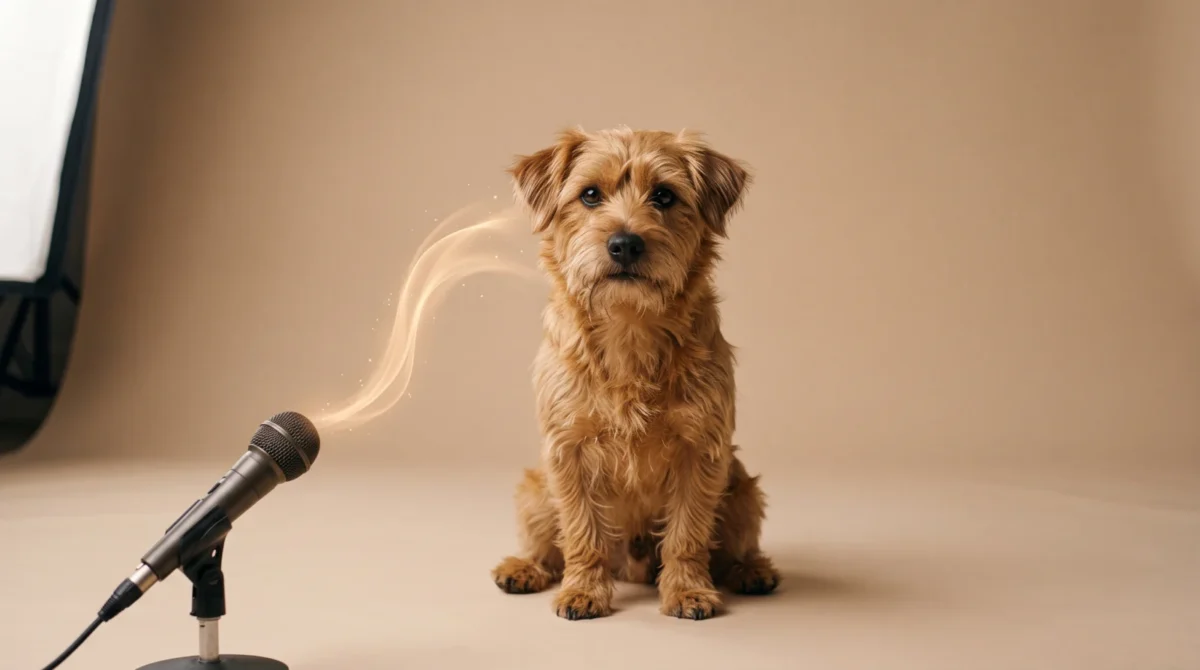
A clear pet photo and a voice recording are enough to start an OmniHuman 2.0 talking-pet video. BytePlus says its model supports cats and dogs, with one image plus audio and an optional text prompt. Treat the result as a stylized performance, not a promise that every muzzle will track speech perfectly.
Pick a photo the camera can read
Start with the dog’s face, not the cutest picture in your camera roll. A profile shot where one side of the muzzle disappears gives any animation model less visible structure to work with. For a cat, avoid a raised paw covering the mouth. You need to see the muzzle. Look for both eyes in frame, a visible nose, a closed or relaxed mouth, and space around the ears so the head can move without being cut off.
A chest-up portrait is easier to plan around than a tiny animal in the middle of a yard, where a distracting fence, a second dog or a patch of sun on the grass can steal attention from the face you actually need to judge. If the original is crowded, crop a copy first, but don’t crop through whiskers or the top of the head. Keep the original too. It’s your visual reference. You’ll want to compare the generated face with the source when you decide whether the character still looks like your pet.
Use a photo you have permission to use. Skip filters that draw fake lashes or a cartoon mouth onto the face; those details can compete with the actual muzzle. BytePlus shows animal subjects, including cats and dogs. But the page doesn’t guarantee results for every breed or head angle. That distinction matters with a dark muzzle. You can’t judge invisible mouth detail.
If you’re choosing between a whole-body frame and a portrait, the reference-image guide goes deeper on framing. For a talking pet, I’d pay more attention to the muzzle than the background. A fancy kitchen won’t rescue a face hidden behind a chew toy.
Record the voice before writing the scene
Decide whose voice the audience should hear: your own, a voice actor’s, or a recording you have the right to use. Record in a quiet room and leave a breath of silence at either end. You can write a funny line, but avoid a script that requires the pet to perform six unrelated actions while delivering it. First, focus on the face and voice. Do they feel like the same character?
Try a single 30-second scene: one sentence to set up the joke, a pause, then the punch line. Listen to it without video. Close your eyes. If the rhythm is flat, fix the recording first. A prompt about head tilts won’t give the voice better timing. BytePlus describes image-plus-audio input; a text prompt is optional. Start there.
Don’t assume a specific accent or language is supported just because a demo sounds convincing. The public product page doesn’t publish a supported-language list. Check the current console or ask BytePlus before promising a multilingual pet campaign to a client.
Build one restrained shot
- Choose your reference image and finished voice track. The OmniHuman 2.0 overview explains the image-plus-audio workflow; for account access and current controls, use the BytePlus product page and its linked API documentation. Don’t invent a console button name from an old tutorial.
- Start with a simple text direction if the interface offers a prompt: "The dog sits facing the camera in a quiet room. It tilts its head once during the pause, then returns to stillness. Keep the face visible throughout." That’s a suggested instruction, not a tested recipe or a guaranteed control.
- Generate a draft, watch it at normal speed, then inspect the muzzle at the start of each spoken phrase. Check whether the eyes drift, the teeth flicker, the ears change shape, or the head leaves the crop. If one motion is distracting, remove that instruction before changing the photograph.
- Keep a short note with the image version, the recording you submitted and the exact prompt you used, because after the third slightly different take you will have a hard time remembering which frame belonged to which instruction. Change one thing for the next attempt. Otherwise each render becomes a guess. Was it the voice? The crop? Or the motion request? You won’t know.
BytePlus says text prompts can direct gestures and camera movement. For a talking-pet clip, that doesn’t mean you need either. My preference is a locked camera and one head tilt. The animal’s expression is the entire shot. Keep it visible. A push-in that cuts off the muzzle is expensive decoration.
Budget for full renders, not just finished clips
The BytePlus pricing card lists $0.07 per second for the film-grade tier, with a documented 30-to-300-second output range. At that tier’s 30-second minimum, one render is 30 s × $0.07 = $2.10. Three full 30-second attempts would be 3 × 30 s × $0.07 = $6.30, before any other costs or billing conditions. This is a planning example, not an invoice or a promise that a pet result is accepted on a particular account.
The same BytePlus page lists an avatar tier at $0.12 per second and describes it around realistic avatars from one image and audio. Don’t apply the film-grade 30-second minimum to that tier without checking its current terms. The pricing difference also doesn’t establish that the avatar tier will make a cat’s mouth look more natural. If cost is the deciding factor, read the full pricing breakdown before doing a batch.
Make a rough edit on paper before you pay to generate: mark where the voice begins, where the dog should tilt its head, where the joke lands and which seconds you expect to discard after you export the final clip. A six-second gag embedded in a required 30-second film-grade render still uses the full 30 seconds for that render under the listed per-second rate. If you only need a tiny reaction shot, that minimum can matter more than the headline price. Check billing in your BytePlus account. Then decide how many drafts you can afford.
Edit for the joke, not for maximum motion
After you have a usable draft, trim dead air in your editor if your deliverable is shorter than the generated clip. Put captions on the final edit yourself rather than asking a video generator to draw small words inside the scene. Add music only if you have rights to it and it doesn’t bury the voice. A caption can land the punch line. The pet can stay almost still.
Keep the first version small: one animal, one voice, one clear reaction. The BytePlus page also shows pet imagery under UGC creative content, but the page is a product showcase, not a quality benchmark for your own photo. If the muzzle looks wrong, cut around it. Or choose another photo. Don’t describe a synthetic clip as a real recording of the animal, especially in an ad.
For paid campaigns, check the applicable BytePlus terms yourself. The public product overview does not spell out regional availability or commercial-use terms. Save the original photo, licensed voice recording and prompt alongside the approved edit so someone on your team can trace what went into the shot.