OmniHuman2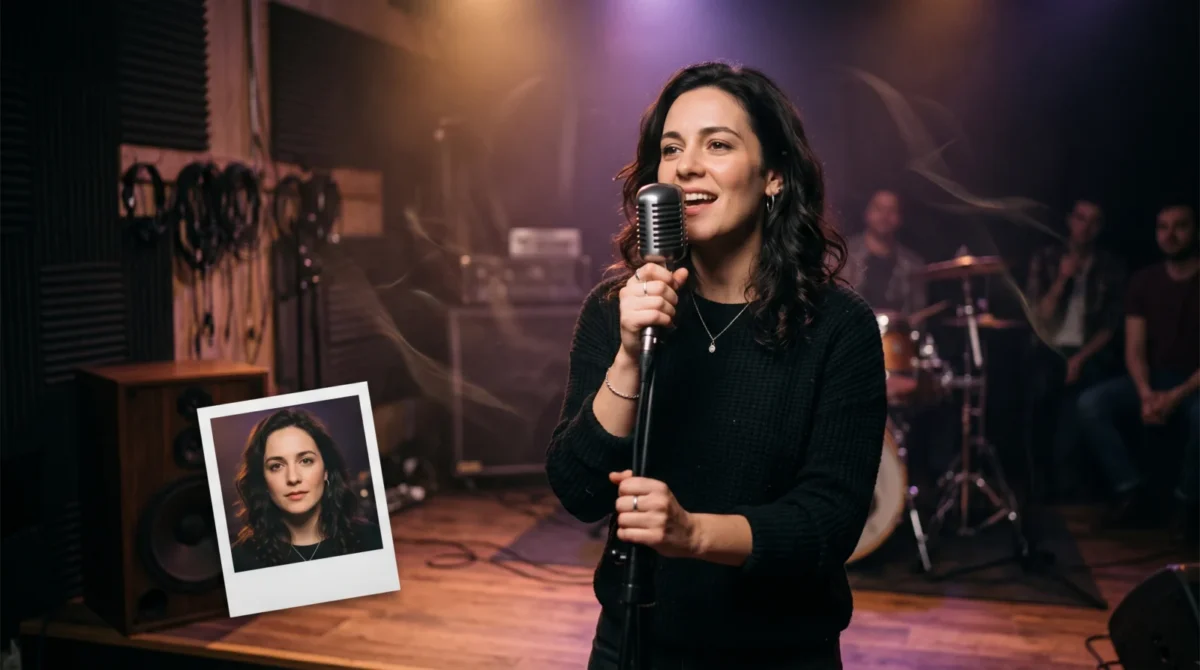
OmniHuman 2.0 can turn one portrait and an audio track into a performance clip, so making an AI music video means planning short singer shots around vocal phrases and editing them to the song. BytePlus lists music videos as a use case, but doesn’t promise automatic beat-perfect cuts or a finished video edit. The source is the BytePlus product page.
Build the song edit before generating video
Start in your video editor, not in a prompt box. Mark the verse line you want to see performed, then mark where the chorus begins. For a 90-second piece, decide which sections deserve a singer shot and which will use other footage. A shot, not the whole edit.
BytePlus describes its AI music video use case in terms of rhythm-driven actions, music emotion matching and dynamic camera movement. Those are creative directions, not a guarantee that every snare hit will trigger a gesture. Cut the beat yourself. If a chorus has a hard downbeat, cut to a new shot there instead of asking one continuous generation to land the beat.
Make a scratch timeline with the actual song file. Note each clip’s start time in the song and the length you can afford to generate. Keep the vocal section in the audio you submit when you want the on-screen character to sing; an instrumental section might work better as a cutaway. That’s an editing choice. It isn’t a published input rule.
Choose a still that can carry the performance
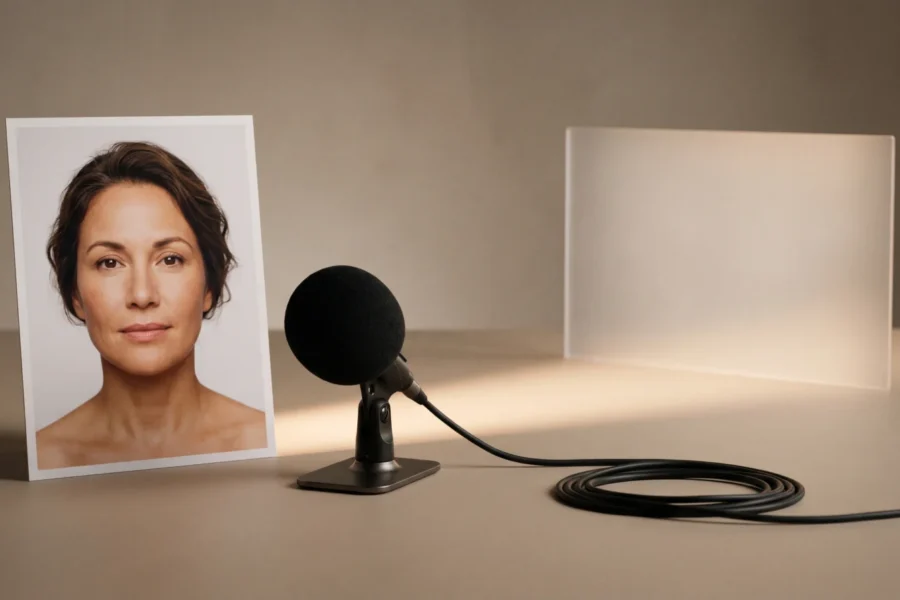
Use a portrait you own or have permission to animate. Give the singer room around the shoulders and head if you want visible movement. A mouth obscured by a microphone, a hand across the face or a severe side angle gives the editor less readable performance to work with. See our reference image guide for framing ideas.
The BytePlus product page says the core setup is a single image plus audio, with an optional text prompt. It also advertises camera and body movement on its film-grade offering. That supports planning a still that can gain motion, but it isn’t evidence that a character’s outfit can change cleanly midway through a shot. For a wardrobe change, prepare a second still and make a real edit between clips.
Keep the background consistent with your intended stage. A portrait in harsh noon sun followed by a request for a dark indoor concert asks for a lot of visual invention. I would spend more time on a believable starting photo than on a paragraph of adjectives about cinematic lighting. That source image matters. A lot.
Set up the audio and prompt for one shot
- Cut a section of the song on a phrase boundary. Leave room before the first sung word and after the final syllable for editing handles. Don’t take a random middle slice of a held note and expect the face to enter cleanly.
- Pair that excerpt with the still in the BytePlus workflow available to your account. The product description names image, audio and optional text as inputs; check the current console or API instructions for exact upload controls instead of relying on an assumed menu path.
- Write a prompt about visible action, not musical quality. Try: “Chest-up singer under warm stage lights. She sways gently on the verse, looks toward the lens for the last line, then the camera slowly moves closer. Keep the same face and dark jacket.” This is an example to adapt, not a tested output claim.
- Review the mouth on long vowels, the transition into consonants and the moment before the cut. If any of those frames fail, shorten the usable section or cover it with another shot rather than hiding it under extra effects.
Try a second prompt with one change at a time. “Camera stays fixed; the singer lifts her chin on the last line” gives you a cleaner comparison. Skip the full dance routine and keep the camera fixed for this test. Our camera and gesture prompts offer more shot directions. Neither prompt wording nor the product page guarantees a gesture at an exact timestamp.
Budget the footage, not just the final runtime
The BytePlus listing shows a film-grade tier at $0.07 per second and an avatar tier at $0.12 per second. It associates the film-grade tier with camera and body movement and displays “30s to 300s Video Output.” Don’t assume a 12-second chorus fragment will be billed as exactly 12 seconds on that tier. Check the billable job length first.
For a hypothetical 90-second film-grade generation, 90 s × $0.07 = $6.30. Two alternate 90-second takes mean 2 × 90 s × $0.07 = $12.60 in generation charges at that listed tier, before other tools or editing work. On the listed avatar tier, 90 s × $0.12 = $10.80. Rate-card math, not an invoice. The tiers may have different controls. Our pricing guide goes further into budget planning.
A music video may use only seconds of a longer generated take. Put a cap on experiments: one portrait, one excerpt, one simple camera prompt, then review before paying for variations. If a shot isn’t working, changing the picture or the edit may be cheaper than requesting six more adjectives.
Finish the cut outside the generator
Bring the rendered performance into your editor under the original song. Line up the vocal entry by ear, then check a consonant against the waveform at normal speed and again frame by frame. Multiple takes need a little repair. Match the crop first. Then correct the color so the singer doesn’t jump between verse and chorus. Add instrumental cutaways where a singing close-up would overstay its welcome.
The BytePlus page says output is native 720p. Plan your export around that source rather than assuming it will hold crisp detail after an aggressive zoom. A larger canvas is fine. Upscaling won’t create new facial detail. The independent OmniHuman overview covers the broader product.
Before posting, check who owns the portrait. Check the audio recording and the song separately. BytePlus’s public product page doesn’t spell out a universal commercial-use license or regional access terms for every account. Check your account agreement and your rights to the music separately. If the clip portrays a real singer, get their consent before animating their likeness, even for a private draft you might later share.